
Accounts Vieu is where you evaluate, prioritize, and take action on your accounts in Vieu.
Instead of looking at one connection path at a time, Accounts Vieu gives you a complete picture of your target accounts, including stakeholder coverage, connector strength, reachability, introduction activity, and account planning resources.
Use Accounts Vieu when you want to answer questions such as:
- Which accounts should I prioritize?
- Which accounts have the strongest warm paths?
- Where do we already have introductions in progress?
- Which accounts are most reachable?
- Which accounts need more research before outreach?
How to access Accounts Vieu
You can access Accounts Vieu in two ways.
1. From the top navigation bar
Click Accounts in the top navigation bar. You will be taken directly to Accounts Vieu, where all available accounts are displayed.
2. From Planner Agent
Planner Agent may direct you to Accounts Vieu when your query involves researching, prioritizing, or evaluating multiple accounts.
For example:
- Show my most reachable accounts
- Find strategic accounts with strong connections
- Show accounts in my Enterprise Pipeline list
Depending on your query, Planner Agent may automatically apply filters and open Accounts Vieu with the relevant accounts already displayed.
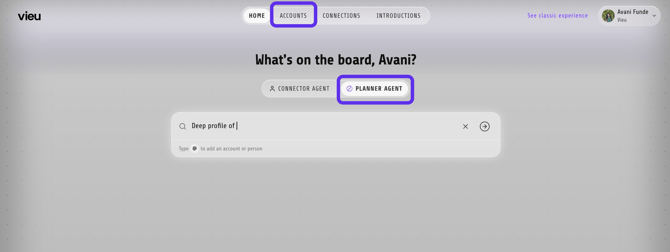
Prefer a video walkthrough? Here you go!
Understanding the Accounts Vieu
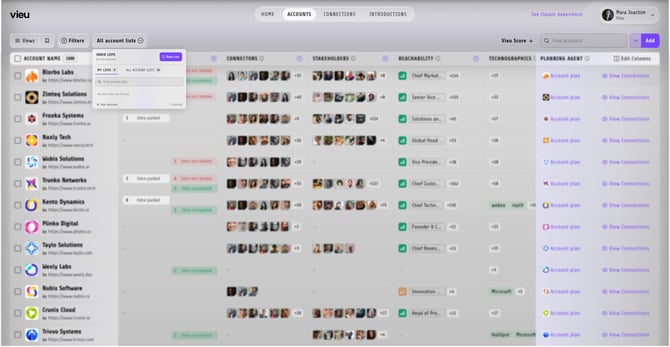
When you open Accounts Vieu, you'll find several tools that help you organize, prioritize, and take action on accounts.
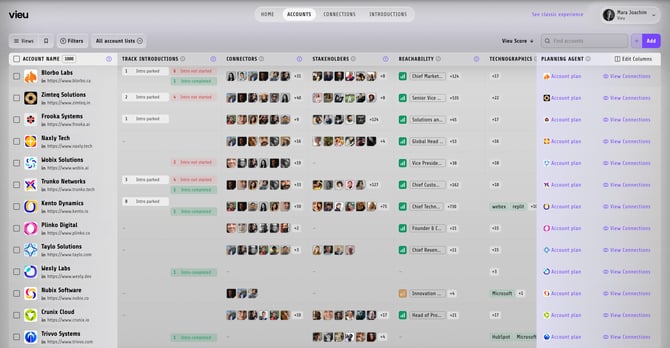
Each row represents a single account. The columns help you evaluate account coverage, relationship strength, introductions, and planning opportunities.
| Column | What it does | How to use it |
|---|---|---|
| Account | Company name, logo, and website. | Identify the account you want to review. |
| Track Introductions | Introduction activity for the account. | See whether introductions are already in progress. |
| Stakeholders | People identified within the account. | Understand stakeholder coverage and key contacts. |
| Connectors | People who can help you reach stakeholders. | Quickly assess available warm paths. |
| Reachability | Strongest reachable stakeholder or persona. | Prioritize accounts with the best access. |
| Technographics | Technologies used by the account. | Understand the tech stack and product fit. |
| Vieu Score | Overall account priority score. | Compare and prioritize accounts quickly. |
| Deal Stage | Current CRM deal stage. | Identify where the account sits in the sales cycle. |
| Deal Value | Opportunity value from CRM. | Focus on higher-value opportunities. |
| Account Plan | Opens the account planning workspace. | Research the account and prepare for outreach. |
| View Connections | Opens Connections Vieu for the account. | Explore relationship paths and potential introducers. |
Take action on selected accounts
To the left of each account row, select one or more checkboxes.
After selecting accounts, an action bar appears at the bottom of the page.
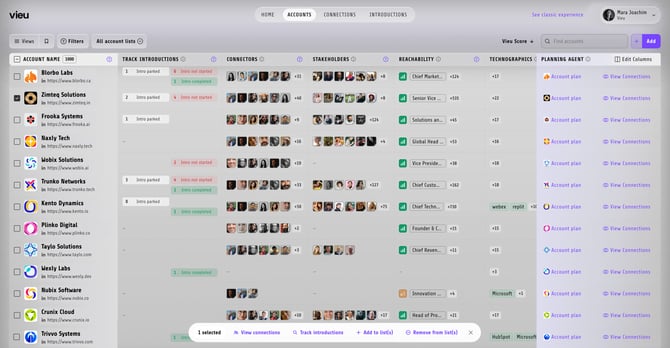
From here, you can:
- Click View Connections to explore connection paths for the selected accounts.
- Click Track Introductions to create or manage introductions for the selected accounts.
- Click Add to List(s) to add the selected accounts to one or more Account Lists.
- Click Remove from List(s) to remove the selected accounts from one or more Account Lists.
Bulk actions are useful when you want to review connections, organize accounts, or manage introductions across multiple accounts at the same time, rather than working through each account individually.
Filters
Located next to Views in the upper-left corner. Click Filters to narrow the accounts displayed in the table.
You can filter by criteria such as:
- Account Owner
- Location
- Industry
- Company Size
- Deal Stage
- Signals
- Technographics
- Introduction Activity
After applying a filter, only matching accounts remain visible.
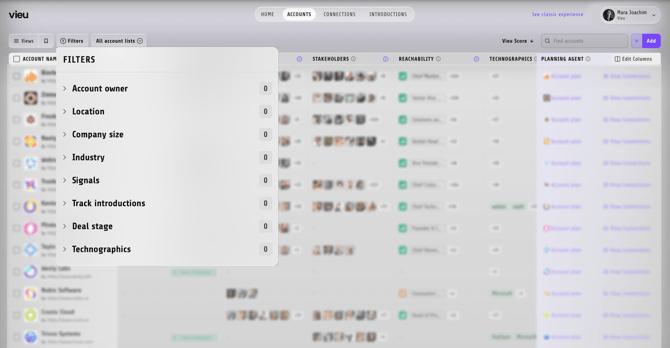
Use Filters when you want to focus on a specific segment of accounts.
Account Lists
Located next to Filters.
Click the Account Lists dropdown to switch between groups of accounts. Selecting an Account List updates the table and displays only accounts included in that list.
Edit Columns
Located in the upper-right corner of the table.
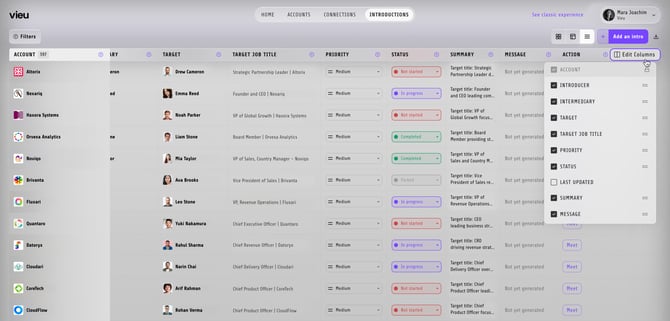
Click Edit Columns to customize the information displayed.
You can:
- Add columns
- Remove columns
- Rearrange columns
Use this when you want to tailor Accounts Vieu to your workflow.
Need help?
For help creating account lists, improving searches, or setting up workflows, reach out to your CSM or contact Vieu Valet at valet@vieu.com.