---
title: Build and Research Your People List
description: The People Vieu gives you a single place to manage and research the individual stakeholders you're targeting.
---
[Skip to content](https://help.vieu.com/build-and-research-your-people-list-#main-content)

Open main navigation
Close main navigation
- Contact us
Contact us
How can we help you?
- There are no suggestions because the search field is empty.
1. [Vieu Knowledge Base](https://help.vieu.com/?hsLang=en)
2. [Account Planning and People Outreach](https://help.vieu.com/account-planning-and-people-outreach?hsLang=en)
# Build and Research Your People List
**People Vieu** gives you one place to manage and research the individual people you're targeting.
Use it to see who you're working with, which accounts they belong to, whether you have connectors to them, and whether an introduction is already underway.
### What you can do in People Vieu
Follow the workflow or jump directly to the section you need:
- [**Access People Vieu**](https://help.vieu.com/build-and-research-your-people-list-#Access) → Choose the people list you want to work with
- [**Understand and customize your view**](https://help.vieu.com/build-and-research-your-people-list-#UnderstandPeoplesVieu)→ Review your targets, filter the list, and customize columns
- **[Take action on a person](https://help.vieu.com/build-and-research-your-people-list-#Takeaction)**- Get deeper context or find warm paths
- [**Add people**](https://help.vieu.com/build-and-research-your-people-list-#Addpeople) → Add individual people or upload a list
- [**Filter your people**](https://help.vieu.com/build-and-research-your-people-list-#Filter) → Narrow your view to the people you want to focus on
If you already know who you want to reach and only need an introduction path, see [**Find Connections by Person**.](https://help.vieu.com/find-connections-to-a-person-in-vieu?hsLang=en)
### 1. Navigate to People Vieu
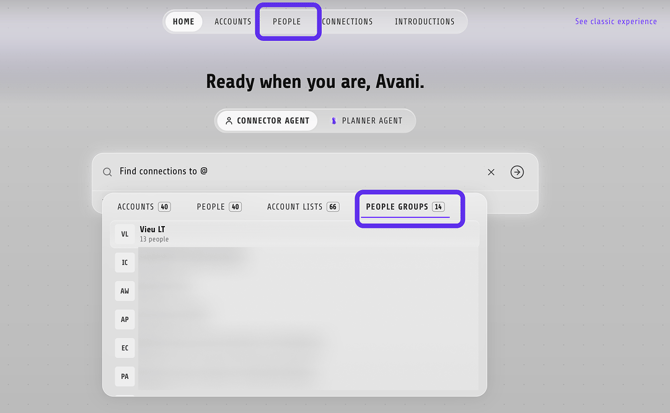
1\. **From [Home](https://www.vieu.com/home), click [People](https://www.vieu.com/people) in the top navigation bar.**
People Vieu opens with your people displayed in a table. Use the **All People Lists** dropdown in the top-left corner to choose the list you want to work with.
**2. From Planner Agent**
Planner Agent may take you directly to People Vieu when your query involves researching or evaluating specific people.
For example:
- Show me stakeholders at ACME I can reach out to
- Find people with the strongest connectors at Icertis
- Show people in my Enterprise Champions list
Depending on your query, Planner Agent may automatically apply filters and open People Vieu with the relevant people already displayed.
### 2. Understand the People's Vieu
The **People** vieu gives you a single place to manage everyone you're targeting. Every person appears as a row with their role, company, available connectors, and introduction status, so you can quickly understand who to prioritize and what action to take next.
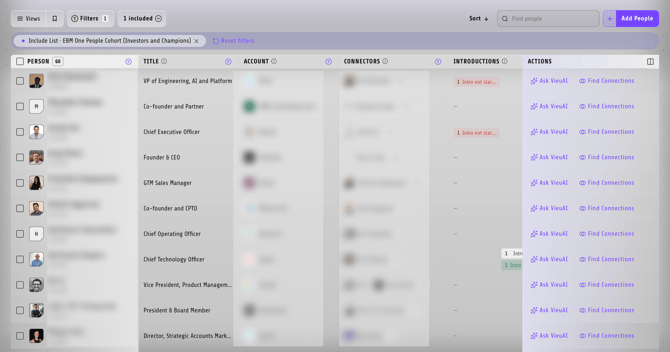
Use this table to understand and quickly identify who's reachable, who's already being worked on, and who should be your next priority.
| Column | What it shows |
| --- | --- |
| **Person** | Name and source (for example, LinkedIn) |
| **Title** | Their current role |
| **Account** | The company they belong to |
| **Connectors** | People in your network who can introduce you |
| **Introductions** | Current introduction status (Not Started, In Progress, etc.) |
| **Actions** | Research the person or find introduction paths |
### 3. Take action on a person
Every row in the Actions column gives you two options - Ask VieuAI or Find Connections
##### 1. Research a person with Ask VieuAI
Click **Ask VieuAI** to open a complete research panel for that person.
.jpeg?width=670&height=375&name=Image%20(13).jpeg)
From here you can review:
| **Card** | **Details** |
| --- | --- |
| **Biography** | role, location, and contact details |
| **Network** | direct, indirect, and pinned connections |
| **Intent Signals** | recent activity and buying signals |
| **Touchpoints** | previous interactions with your team |
| **Thumbprints** | career updates and recent social activity |
You can also ask questions such as:
- *How do I get connected with this person?*
- *Summarize their career.*
- *What's Vieu's history with them?*
Vieu Tip:
From the same panel you can also:
- **Mark as Stakeholder** to flag them on their account,
- or **Generate 1 Pager** to create a shareable summary of everything Vieu knows about them.
Use this before reaching out so you understand who they are and how best to engage them.
##### 2. Find Connections
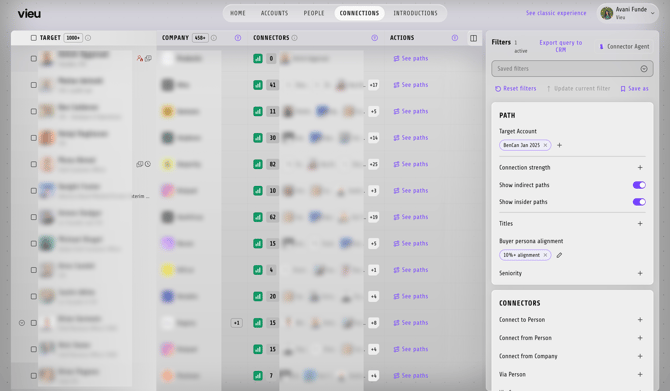
Once you know this is someone you want to engage, click **Find Connections** from their row.
This takes you to Connections Vieu, where you can see the people in your network who can help you reach that person and evaluate the available paths.
### 4. Add people to your list
Use **Add People** when you discover someone new through a call, org chart, event, account research, or another source and want to start tracking them in Vieu.
Click **Add People** in the top-right corner.
****
It will open up the following panel:
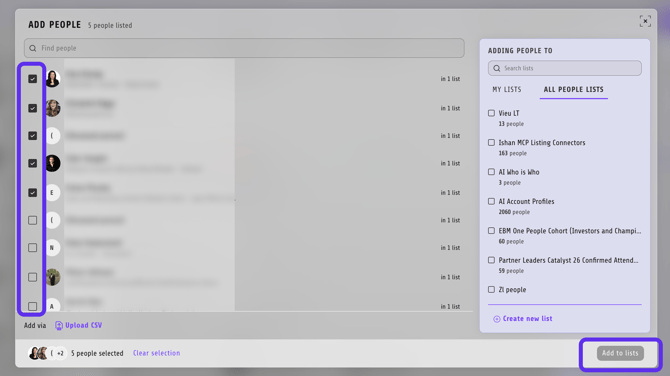
From here:
1. Use **Find People** to search by name. Review the title and account shown with each result to make sure you've found the right person.
2. Select one or more people using the checkboxes.
3. Under **Adding People To**, choose the list where you want to add them. You can switch between **My Lists** and **All People Lists**.
4. If you need a new group, click **Create New List** and create one for your account, campaign, or initiative.
5. Click **Add to Lists** to confirm.
If you already have a larger contact list outside Vieu, select **Upload CSV** to add people in bulk.
### 5. Narrow your view - Filter
Use filters, search, and saved lists to narrow the table to the people you want to work with.
Click **Filters** at the top of People Vieu to narrow your list to the people most relevant to what you're working on.
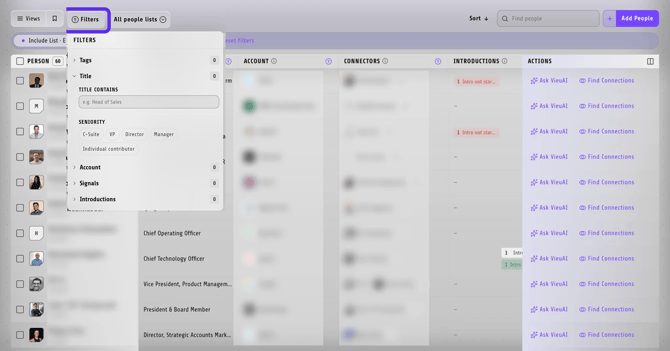
You can filter by:
| Filter | How to use it |
| --- | --- |
| **Tags** | Show people with specific tags you've added or are already associated with them. |
| **Title** | Search for keywords in a person's job title, such as *Head of Sales*. You can also filter by **C-Suite, VP, Director, Manager,** or **Individual Contributor**. |
| **Account** | Narrow the list to people from specific accounts. |
| **Signals** | Find people based on the signals available for them, so you can focus on people with relevant or timely activity. |
| **Introductions** | Filter based on introduction status to see who has or hasn't already been worked on. |
#### **Need help?**
If you run into issues during setup or want help with field mapping, reach out to us at **[valet@vieu.com.](mailto:valet@vieu.com)**
- [Getting started](https://help.vieu.com/getting-started?hsLang=en)
- [Integrations](https://help.vieu.com/integrations?hsLang=en#main-content)
- [MCP Integration (AI Assistants)](https://help.vieu.com/integrations?hsLang=en#mcp-integration-ai-assistants)
- [CRM Integrations](https://help.vieu.com/integrations?hsLang=en#crm-integrations)
- [Chrome Extension](https://help.vieu.com/integrations?hsLang=en#chrome-extension)
- [Email & Calendar](https://help.vieu.com/integrations?hsLang=en#email-calendar)
- [Vieu Agent for Slack](https://help.vieu.com/integrations?hsLang=en#vieu-agent-for-slack)
- [Finding Connections & Intros](https://help.vieu.com/finding-connections-intros?hsLang=en)
- [Requesting & Tracking Introductions](https://help.vieu.com/requesting-tracking-introductions?hsLang=en)
- [Account Planning and People Outreach](https://help.vieu.com/account-planning-and-people-outreach?hsLang=en)
- [Support](https://help.vieu.com/support?hsLang=en)
[](https://help.vieu.com/?hsLang=en)
Copyright © 2026, Vieu