
Connecting your email and calendar helps Vieu draft, send, and track emails on your behalf with the right context. You can integrate either Gmail or Outlook in just a few minutes.
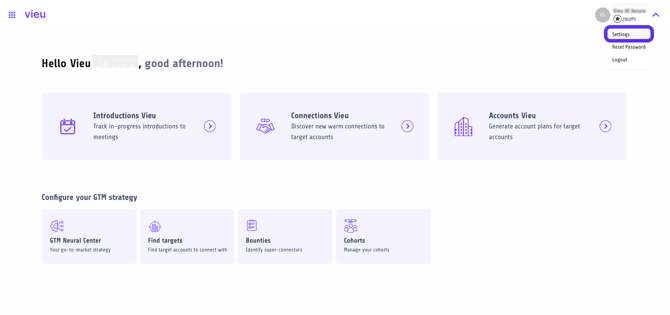
Step 1: Open Email & Calendar settings
Log in to Vieu and navigate to Settings → Email & Calendar.
You can also jump straight here: https://vieu.com/settings#sm=user&smu=integrations
Step 2: Choose your email provider
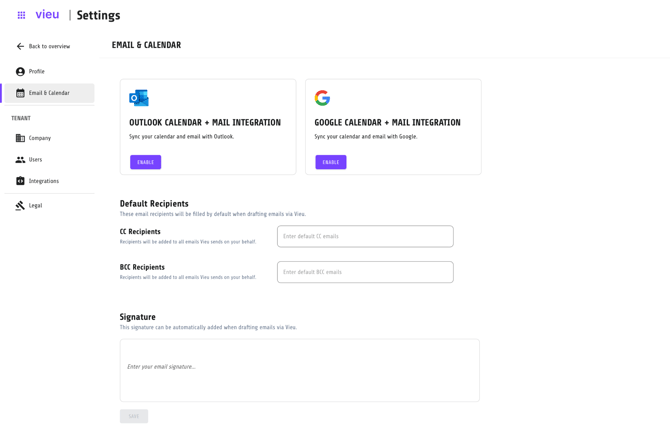
You’ll see two options:
- Google Calendar + Mail Integration (Gmail)
- Outlook Calendar + Mail Integration
Click Enable for the provider you use.
Step 3: Authenticate your account
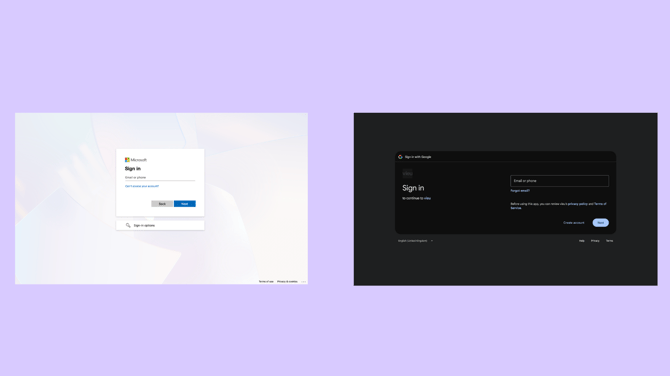
After clicking Enable, you’ll be redirected to the Gmail or Outlook sign-in page.
Sign in using your credentials or select the work account you want to connect.
Note: Make sure you’re using your work email account and have access to it before continuing.
Step 4: Grant permissions
Approve the requested permissions so Vieu can:
- Sync your calendar
- Draft and send emails on your behalf
- Apply your default recipients and signature (if configured)
Once permissions are granted, the integration is complete.
What happens next
After setup, Vieu can automatically:
- Use your connected inbox for email drafts and introductions
- Add default CC/BCC recipients if you’ve set them
- Include your saved email signature
You can update or disconnect the integration anytime from Settings → Email & Calendar.
If you run into issues or need help, reach out to us at vieu@valet.com.