---
title: Finding Connections across an Account List
description: Learn how to find connections in Vieu using cohorts, apply filters to narrow results, explore connection paths, and request introductions through your strongest connections.
---
[Skip to content](https://help.vieu.com/finding-connections-across-an-account-list#main-content)

Open main navigation
Close main navigation
- Contact us
Contact us
How can we help you?
- There are no suggestions because the search field is empty.
1. [Vieu Knowledge Base](https://help.vieu.com/?hsLang=en)
2. [Finding Connections & Intros](https://help.vieu.com/finding-connections-intros?hsLang=en)
# Finding Connections across an Account List
An account list search displays all relevant people across every account in the selected list with available connection paths. This helps you compare accounts, stakeholders, connector strength, and reachability in one place.
Use this workflow when you want to answer questions such as:
- Which accounts in this list have the strongest warm paths?
- Which accounts are the most reachable?
- Who are the most relevant and reachable stakeholders?
- Where do we have insider or verified connections?
- Which accounts and stakeholders should I prioritize for introductions?
Instead of researching each account separately, Connections Vieu brings together the relevant people across your account list, the connectors who can help you reach them, and any direct, indirect, or insider paths available.
This article walks you through the complete process of finding and acting on connection paths across an account list. You can follow each step or jump directly to the section you need:
1. [Find Connections Across an Account List](https://help.vieu.com/finding-connections-across-an-account-list#findconnections)
2. [Understand Your Results in Connections Vieu](https://help.vieu.com/finding-connections-across-an-account-list#ConnectionsVieu)
3. [Explore and Act on Connection Paths](https://help.vieu.com/finding-connections-across-an-account-list#SeePaths)
4. [Narrow Down the Available Paths with Filters](https://help.vieu.com/finding-connections-across-an-account-list#Filters)
5. [Customize the Table with Edit Columns](https://help.vieu.com/finding-connections-across-an-account-list#EditColumns)
6. [Ask Connector Agent for Help](https://help.vieu.com/finding-connections-across-an-account-list#connectoragent)
### 1. How to find connections across an account list
Follow the steps below to explore connection paths across a saved account list.
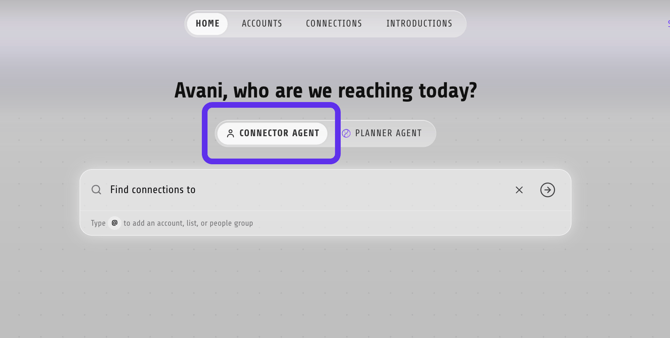
**Step 1:** From the Home page, make sure you are using **Connector Agent**.
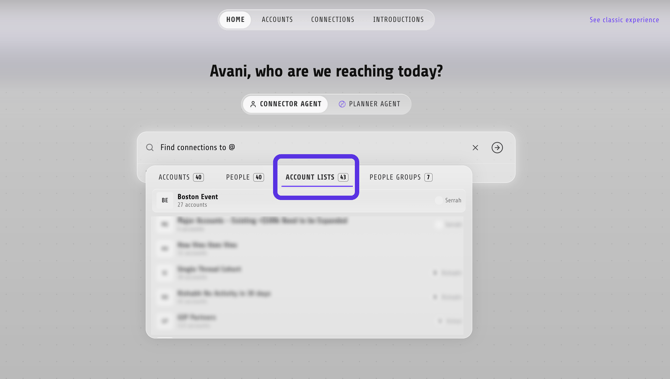
**Step 2:** In the search bar, make sure **Account Lists** is selected.
**Step 3:** Find and select the account list you want to explore.
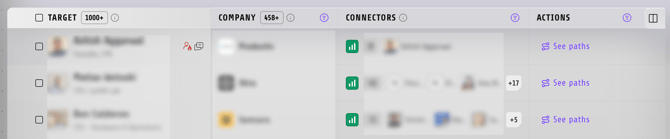
**Step 4:** Vieu opens Connections Vieu and displays all relevant people across the accounts in the selected list with available connection paths. Each person appears as a separate row, allowing you to compare accounts, stakeholders, connectors, and path strength before deciding where to focus.
### 2. Review the available connections – Connections Vieu
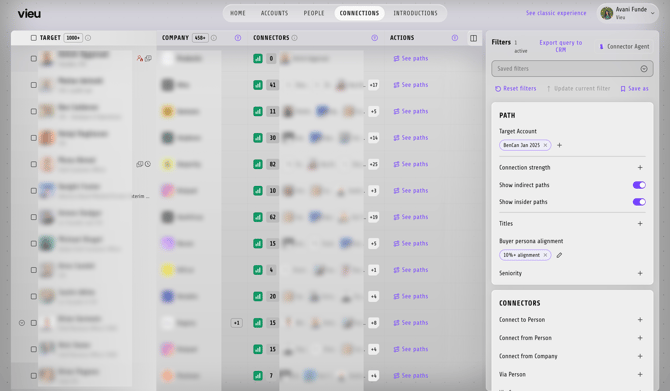
The Connections Vieu table displays all relevant people across the selected account list with available connection paths. Use this view to compare accounts and identify the stakeholders who are most relevant and reachable.
Quickly understand your Connections Vieu
| Column | What it shows |
| --- | --- |
| Target | Each relevant person across the accounts in the selected list with an available connection path |
| Company | The account the target belongs to |
| Connectors | People who can help you reach each target |
| Actions | Options for viewing the complete paths to each target |
### 3. Take action – See Paths
Click **See paths** under **Actions** beside a target to open the detailed path view.

Each path shows how the connection moves from your network to that person, including the introducer and any intermediaries involved.
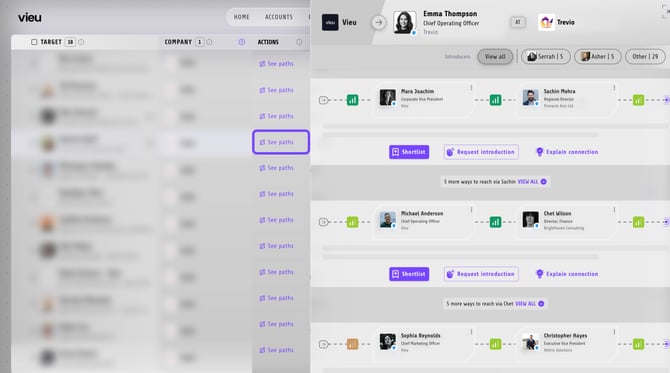
From each path, you can:
- **Shortlist** it for later
- **Request introduction** when you are ready to act
- **Explain connection** to understand the relationships behind the path
Repeat this for different stakeholders to compare available routes across the accounts in your list.
### 4. Narrow down the available paths – Filters
Because an account list may return several people across multiple companies, use the filters in the right panel to narrow the results to the accounts, stakeholders, and connection paths most relevant to you.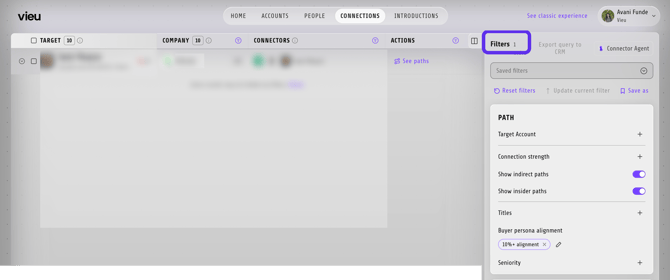
Here’s how you can use the filters:
- Focus on one or more **Target Accounts**
- Prioritize paths by **Connection strength**
- Find stakeholders by **Title**
- Narrow results by **Buyer persona alignment** or **Seniority**
- Turn indirect paths on or off
- Include or exclude insider paths
- Require verified connectors
- Limit results to connectors who are current employees
- Filter by **Relationship Type**
- Filter by the introducer’s relationship with the target
- Search for paths from a particular person or company
- Look for routes through a specific person or company
- Narrow accounts by industry, location, or company size
As you apply filters, the list updates in real time and the number of available people and paths reduces accordingly.
### 5. Customize the table – Edit Columns
Click **Edit columns** in the upper-right corner of the table to choose which information appears in your view.
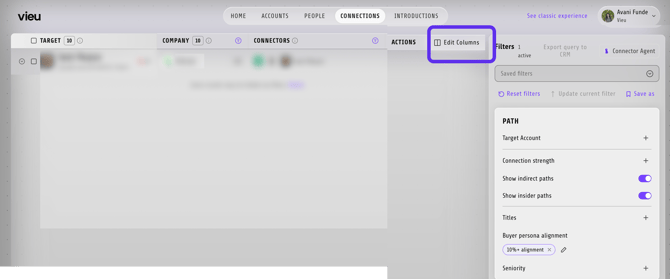
You can add columns such as:
- Alignment
- Vieu Score
- Seniority
Use these columns to compare stakeholders and connection opportunities across the accounts in your list.
### 6. Use Connector Agent to find the best way in
Click **Connector Agent** in the upper-right corner and ask questions about the selected account list.
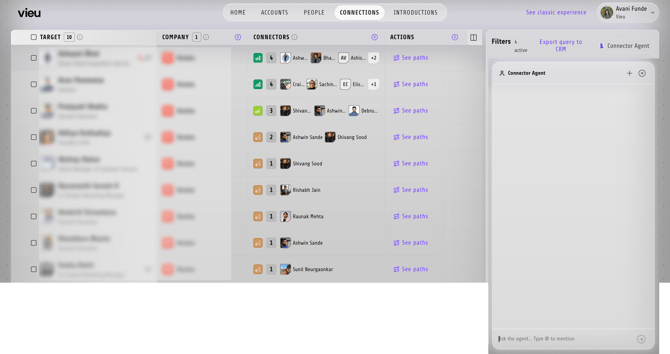
For example:
- Which accounts in this list are the most reachable?
- Which stakeholders have the strongest connection paths?
- Show me verified paths across this account list.
- Which accounts have insider paths available?
- Which accounts and people should I prioritize for introductions?
Once you find a credible route, click **See paths** and shortlist it or request an introduction. Vieu’s Intro Agent will take care of the next steps and keep the request moving.
Once requested, the introduction is automatically tracked in [**Introductions Vieu**](https://www.vieu.com/introductions), so it stays visible and easy to follow up on.
### **Need help?**
If you have questions about finding connections across an account list, applying filters, or choosing the right paths, reach out to us at **valet@vieu.com**. We’re happy to help.
If you haven’t created or uploaded an account list yet, here’s how you can do it: [Creating and managing Account Lists in Accounts Vieu](https://help.vieu.com/creating-and-managing-account-lists-in-accounts-vieu?hsLang=en)
- [Getting started](https://help.vieu.com/getting-started?hsLang=en)
- [Integrations](https://help.vieu.com/integrations?hsLang=en#main-content)
- [MCP Integration (AI Assistants)](https://help.vieu.com/integrations?hsLang=en#mcp-integration-ai-assistants)
- [CRM Integrations](https://help.vieu.com/integrations?hsLang=en#crm-integrations)
- [Chrome Extension](https://help.vieu.com/integrations?hsLang=en#chrome-extension)
- [Email & Calendar](https://help.vieu.com/integrations?hsLang=en#email-calendar)
- [Vieu Agent for Slack](https://help.vieu.com/integrations?hsLang=en#vieu-agent-for-slack)
- [Finding Connections & Intros](https://help.vieu.com/finding-connections-intros?hsLang=en)
- [Requesting & Tracking Introductions](https://help.vieu.com/requesting-tracking-introductions?hsLang=en)
- [Account Planning and People Outreach](https://help.vieu.com/account-planning-and-people-outreach?hsLang=en)
- [Support](https://help.vieu.com/support?hsLang=en)
[](https://help.vieu.com/?hsLang=en)
Copyright © 2026, Vieu