---
title: Set up the Vieu Slack app for your team
description: Install Vieu in your Slack workspace, choose your introduction channel, and get your team running in three steps
---
[Skip to content](https://help.vieu.com/how-to-connect-vieu-agent-to-slack-0-1#main-content)

Open main navigation
Close main navigation
- Contact us
Contact us
How can we help you?
- There are no suggestions because the search field is empty.
1. [Vieu Knowledge Base](https://help.vieu.com/?hsLang=en)
2. [Integrations](https://help.vieu.com/integrations?hsLang=en)
3. [Vieu Agent for Slack](https://help.vieu.com/integrations?hsLang=en#vieu-agent-for-slack)
# Set up the Vieu Slack app for your team
## Discover warm paths into a target account and turn them into requested intros: all from Slack.
**Who this is for:** Workspace admins connecting Vieu to Slack for the first time.
**Please Note:** Vieu Agent for Slack is currently in Beta and continues to improve with every release.
### **Before you start**
- You have admin permissions on the Slack workspace you want to connect.
- You have an active Vieu account.
- You have decided which Slack channel Vieu should use to post introduction requests (most teams use a private channel like #vieu-warm-intros).
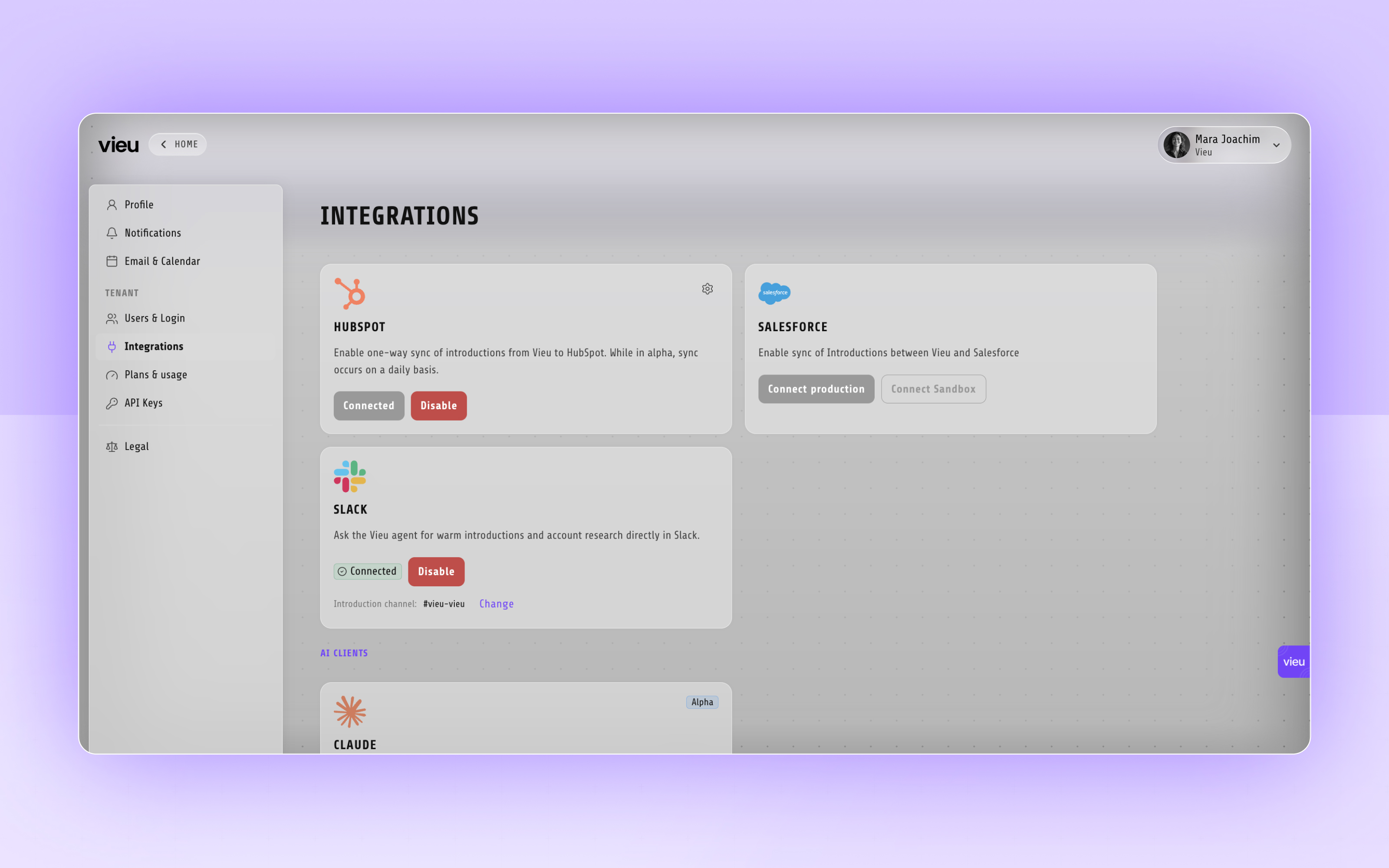
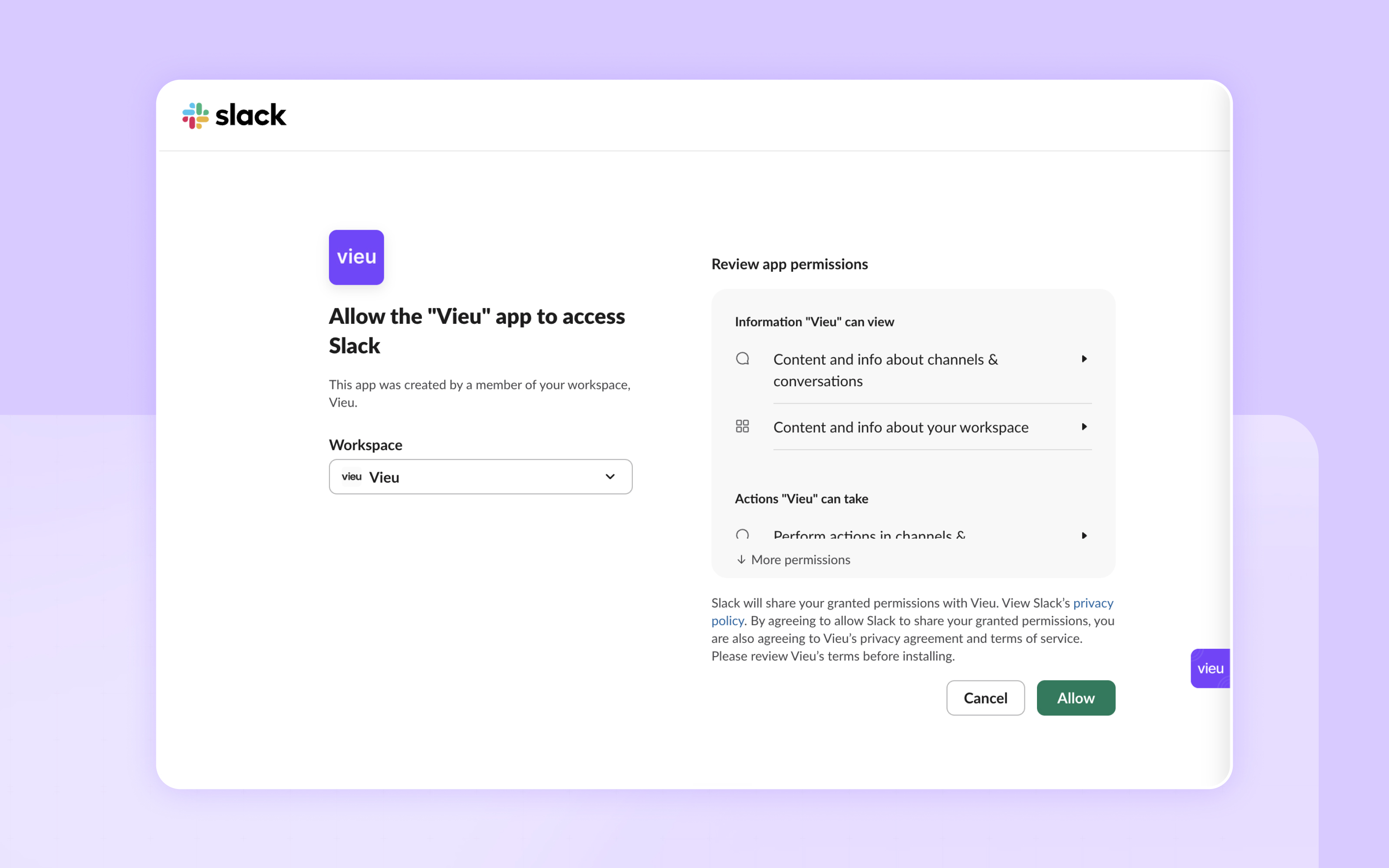
### **Step 1: Install Vieu to your Slack workspace**
1. In Vieu, open Settings → Integrations → Slack.
2. Click Add to Slack.
3. Choose the workspace from the dropdown.
4. Review and approve the permissions Vieu requests.
### 
### 
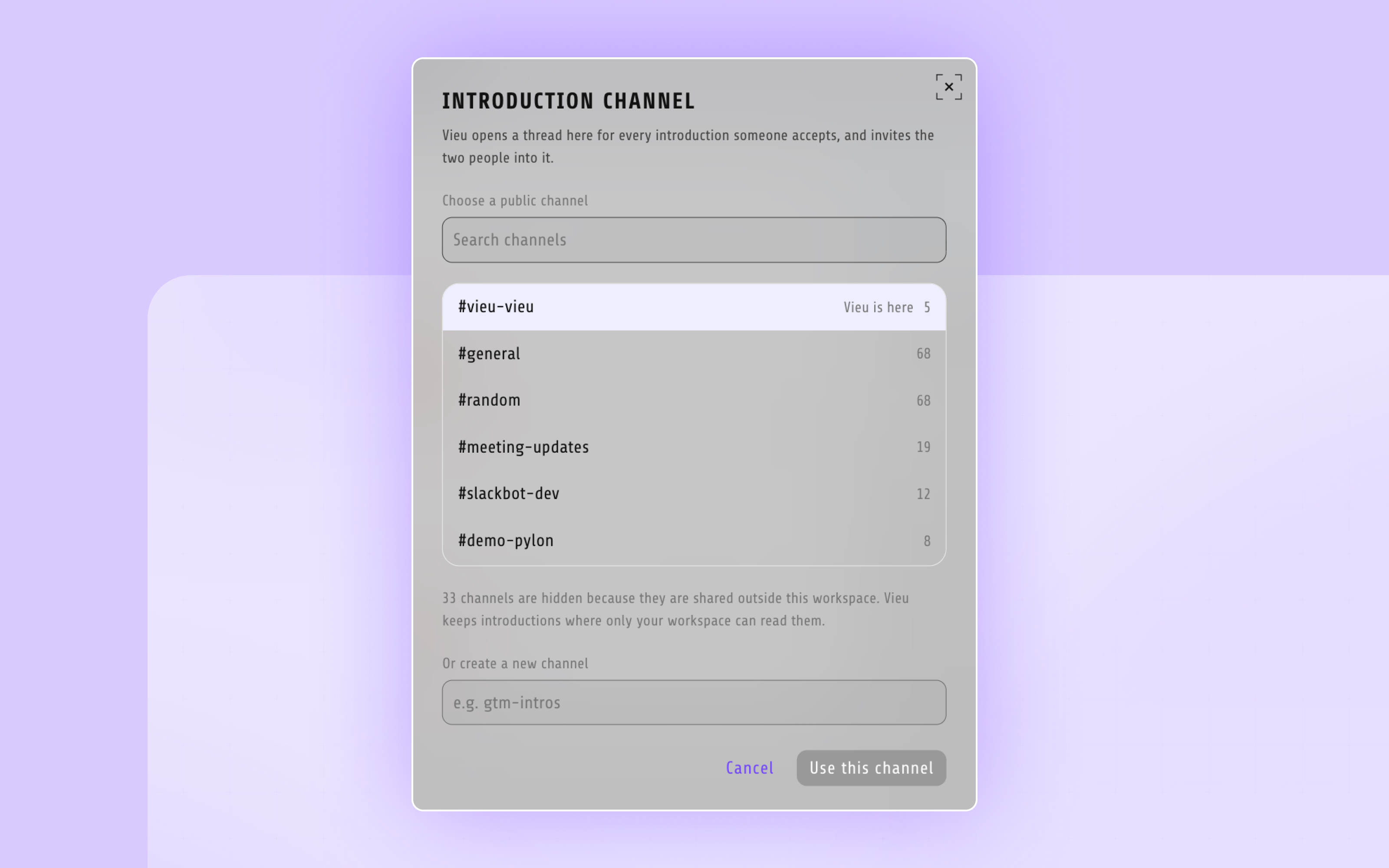
### **Step 2: Choose your introduction channel**
When a rep clicks **Request introduction**, Vieu DMs the introducer directly. A copy of the request is also posted to a shared channel so your team has visibility into who is asking whom for what.
1. In Vieu, go to Settings → Integrations → Slack → Configure.
2. Select the channel from the dropdown.
3. Save.
**Tip:** Most teams use a private channel like #vieu-intros so revenue leaders can see intro activity across the org without cluttering a public channel.
Add Vieu to the channel first if it does not appear in the dropdown: Slack only shows channels the app is a member of.
### **Step 3: Invite your team**
Once installed, anyone on the workspace can mention **@vieu** in any channel or DM to start using the agent. Consider sending a short launch note in a shared channel with three example prompts:
- *"Who do we know at \[target company\]?"*
- *"Brief me on \[person\] before my call"*
- *"Which accounts should I work this week?"*
### **Troubleshooting**
**Vieu is not responding to mentions:** Slack requires an app to be added to a channel before it can respond there. Ask the channel owner to invite **@vieu** to the channel, or use a DM.
**The intro channel setting will not save:** Vieu can only post to channels it has been invited to. For private channels, add Vieu to the channel first, then return to Settings and select it.
**A teammate cannot see the app:** If your workspace requires per-user install, ask them to search for "Vieu" in the Slack app directory and add it themselves.
### **Related articles**
- [Find warm introductions and request them in Slack](https://help.vieu.com/how-to-connect-vieu-agent-to-slack-0-2?hsLang=en)
- [Research people and accounts before you reach out](https://help.vieu.com/how-to-connect-vieu-agent-to-slack-0-3?hsLang=en)
- [Manage your accounts and lists from Slack](https://help.vieu.com/how-to-connect-vieu-agent-to-slack-0-4?hsLang=en)
**Need help?**
If you run into issues during setup or want help with field mapping, reach out to us at **[valet@vieu.com.](mailto:valet@vieu.com)**
- [Getting started](https://help.vieu.com/getting-started?hsLang=en)
- [Integrations](https://help.vieu.com/integrations?hsLang=en#main-content)
- [MCP Integration (AI Assistants)](https://help.vieu.com/integrations?hsLang=en#mcp-integration-ai-assistants)
- [CRM Integrations](https://help.vieu.com/integrations?hsLang=en#crm-integrations)
- [Chrome Extension](https://help.vieu.com/integrations?hsLang=en#chrome-extension)
- [Email & Calendar](https://help.vieu.com/integrations?hsLang=en#email-calendar)
- [Vieu Agent for Slack](https://help.vieu.com/integrations?hsLang=en#vieu-agent-for-slack)
- [Finding Connections & Intros](https://help.vieu.com/finding-connections-intros?hsLang=en)
- [Requesting & Tracking Introductions](https://help.vieu.com/requesting-tracking-introductions?hsLang=en)
- [Account Planning and People Outreach](https://help.vieu.com/account-planning-and-people-outreach?hsLang=en)
- [Support](https://help.vieu.com/support?hsLang=en)
[](https://help.vieu.com/?hsLang=en)
Copyright © 2026, Vieu