---
title: How to connect Vieu MCP to ChatGPT
description: Learn how to connect the Vieu MCP server to ChatGPT, and start finding warm introductions and relationship intelligence directly inside ChatGPT.
---
[Skip to content](https://help.vieu.com/how-to-connect-vieu-to-chatgpt#main-content)

Open main navigation
Close main navigation
- Contact us
Contact us
How can we help you?
- There are no suggestions because the search field is empty.
1. [Vieu Knowledge Base](https://help.vieu.com/?hsLang=en)
2. [Integrations](https://help.vieu.com/integrations?hsLang=en)
3. [MCP Integration (AI Assistants)](https://help.vieu.com/integrations?hsLang=en#mcp-integration-ai-assistants)
# How to connect Vieu MCP to ChatGPT
Vieu works wherever you do. Use Vieu with AI tools like Claude, ChatGPT, and Perplexity to find warm introductions, understand relationship paths, research accounts, and identify the right stakeholders without leaving the conversation.
##### How It Works
Vieu connects to Claude, ChatGPT, and Perplexity through MCP (Model Context Protocol), a standard that allows AI assistants to securely access external tools and data.
Once connected, your AI assistant can query Vieu on your behalf and return relationship intelligence directly in the conversation. Simply ask a question in plain English and Vieu will determine when relationship data is needed and return the most relevant information.
Before you start, make sure you have:
- Access to Claude, ChatGPT, or Perplexity with MCP support enabled.
- A Vieu account.
- Permission to authenticate with your Vieu account.
### Get Started
Choose your AI assistant and follow the setup guide:
- [Connect Vieu MCP to Claude](https://help.vieu.com/how-to-connect-vieu-mcp-to-claude?hsLang=en)
- [Connect Vieu MCP to ChatGPT](https://help.vieu.com/how-to-connect-vieu-to-chatgpt#ChatGPTsteps)
- [Connect Vieu MCP to Perplexity](https://help.vieu.com/how-to-connect-vieu-mcp-to-perplexity?hsLang=en)
**Please Note:** Vieu MCP is currently in Beta and continues to improve with every release.
Today, Vieu MCP can help you:
1. Find warm paths into target accounts.
2. Discover introductions to specific people.
3. Understand how relationship paths are connected.
4. Research accounts and stakeholders directly from your AI assistant.
5. Ask questions in natural language without learning special commands or syntax.
If a query doesn't return exactly what you expect, try adding more context such as the company name, title, or function.
We're actively improving search quality, relationship ranking, path explanations, and support for more complex searches based on user feedback.
### To connect Vieu MCP to ChatGPT, follow these steps
#### **Step 1: Enable Developer Mode**
1. - Open [ChatGPT](http://chatgpt.com).
- Click your profile icon.
- Select **Settings**.
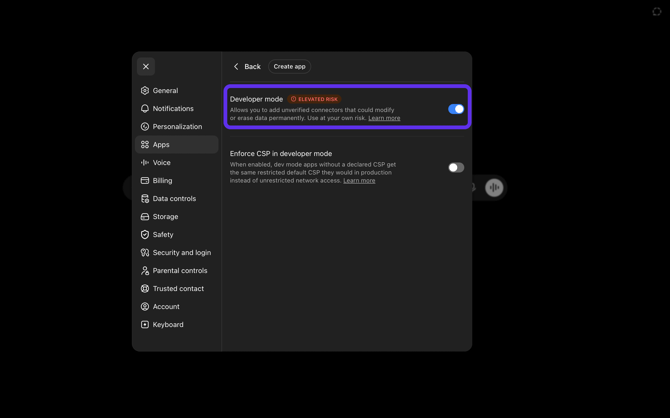
- Navigate to [Apps \> Advanced Settings](https://chatgpt.com/g/g-p-6866739dc6648191a9f145d38f780406/c/6a2a6821-ca0c-83ab-bb0a-4ab1067dfe45#settings/Connectors/Advanced)
- Enable **Developer Mode**
**You can also access the [connectors page](https://chatgpt.com/g/g-p-6866739dc6648191a9f145d38f780406/c/6a2a6821-ca0c-83ab-bb0a-4ab1067dfe45#settings/Connectors/Advanced) directly.**
**
#### **Step 2: Create a New App**
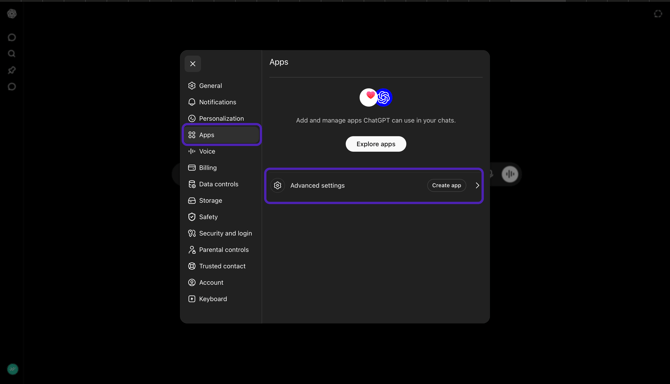
- Open the Developer section under Advanced Settings
- Click on **Create App.**
****
#### **Step 3: Configure the Vieu MCP App**
Enter the following details:
- Name - **Vieu**
- Description - **Find warm introductions, relationship paths, and account insights.**
- Connection - **Server URL**
- Enter the Remote MCP Server URL - [https://api.cloud.seeqe.com/mcp](https://api.cloud.seeqe.com/mcp)
- Authentication - OAuth (default) and leave Advanced OAuth settings unchanged
- Icon - Upload the **[Vieu logo](https://www.dropbox.com/scl/fi/y08zbewc8c68zlh3bpjmo/Vieu-Logo.png?rlkey=3zyw82hugbnodma39y3bk5wlj&st=i7pvn9qa&dl=0)**
- Once you've entered the details above, review the permissions and click Create.

The connector will now appear in your list of available connectors.
#### **Step 3: Connect Your Vieu Account**
1. Complete the OAuth authentication flow.
2. Sign in using your Vieu account.
3. Review and approve the requested permissions.
Once authentication is complete, ChatGPT can securely access Vieu MCP tools on your behalf.
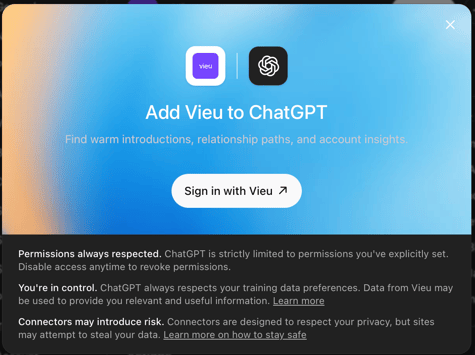
Once authentication is complete, ChatGPT can securely access Vieu MCP tools on your behalf.
Note:
- Use the correct Vieu account during authentication.
- Test the connector immediately after setup.
#### **Step 4: Verify the Connection**
After connecting, the Vieu MCP app should display as connected.
#### **Step 5: Test the Connection**
Run a simple query to confirm the connection is working correctly.
#### Before You Begin
1. Type **@** in the ChatGPT prompt box.
2. Select **@Vieu** from the dropdown menu.
3. Include either:
- The exact company name, or
- The company website/domain
This helps Vieu identify the correct account and return more accurate results.
##### **Find Warm Connections:** Try
- @Vieu help me find connections into Acme Corp
- @Vieu who can get me into Stripe.com
- @Vieu do we have relationships to a VP of Sales at Cloudflare.in
ChatGPT should return ranked introduction paths and relationship recommendations.
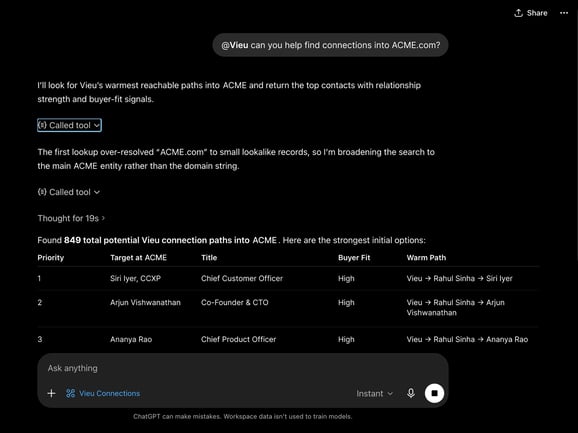
If ChatGPT returns Vieu relationship intelligence successfully, the connector is working correctly.
**Need help?**
If you run into issues during setup or want help with field mapping, reach out to us at **[valet@vieu.com.](mailto:valet@vieu.com)**
- [Getting started](https://help.vieu.com/getting-started?hsLang=en)
- [Integrations](https://help.vieu.com/integrations?hsLang=en#main-content)
- [MCP Integration (AI Assistants)](https://help.vieu.com/integrations?hsLang=en#mcp-integration-ai-assistants)
- [CRM Integrations](https://help.vieu.com/integrations?hsLang=en#crm-integrations)
- [Chrome Extension](https://help.vieu.com/integrations?hsLang=en#chrome-extension)
- [Email & Calendar](https://help.vieu.com/integrations?hsLang=en#email-calendar)
- [Vieu Agent for Slack](https://help.vieu.com/integrations?hsLang=en#vieu-agent-for-slack)
- [Finding Connections & Intros](https://help.vieu.com/finding-connections-intros?hsLang=en)
- [Requesting & Tracking Introductions](https://help.vieu.com/requesting-tracking-introductions?hsLang=en)
- [Account Planning and People Outreach](https://help.vieu.com/account-planning-and-people-outreach?hsLang=en)
- [Support](https://help.vieu.com/support?hsLang=en)
[](https://help.vieu.com/?hsLang=en)
Copyright © 2026, Vieu