---
title: How to Prioritize & Research Accounts with Vieu
description: Learn how to use Accounts Vieu to explore target accounts, generate Account Plans, view warm connections, and manage your account strategy.
---
[Skip to content](https://help.vieu.com/how-to-prioritize-research-accounts-with-vieu#main-content)

Open main navigation
Close main navigation
- Contact us
Contact us
How can we help you?
- There are no suggestions because the search field is empty.
1. [Vieu Knowledge Base](https://help.vieu.com/?hsLang=en)
2. [Account Planning and People Outreach](https://help.vieu.com/account-planning-and-people-outreach?hsLang=en)
# How to Prioritize & Research Accounts with Vieu
The [**Accounts**](https://www.vieu.com/accounts)page gives you a single place to manage and prioritize your target accounts.
Instead of manually reviewing every account in your territory, use **Accounts** to prioritize where to spend your time. Vieu brings together relationship signals, account activity, technographic fit, and CRM data so you can quickly identify the accounts most likely to convert. From here, you can:
1. **Prioritize accounts** using Vieu signals such as reachability, recent account activity, technographic fit, deal information, and more.
2. **Create and save a custom view** for your territory, book of business, or campaign so you can return to the same prioritized list anytime.
3. **Research an account** by opening its **Account Plan** to understand stakeholders, account context, and buying signals.
4. **Find the best path in** by opening **View Connections** to identify the strongest warm introduction paths for that account.
This article walks through how to navigate the Accounts page and use each of these capabilities.
### **1. Navigate to the Accounts Vieu**
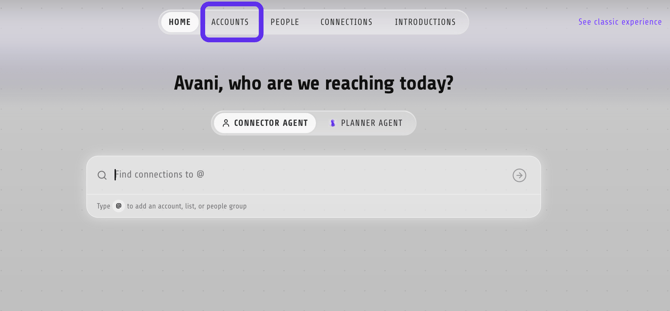
From [**Home**](https://www.vieu.com/home), click [**Accounts**](https://www.vieu.com/accounts) in the top navigation bar.
#### 1. From the top navigation
- Click **Accounts** in the top navigation bar.
- Use the **All Account Lists** dropdown in the top-left corner to select the account list you want to work with (for example, **All Account Lists** or any of your **Saved Lists**).
[](https://www.vieu.com/home)
#### 2. From Planner Agent
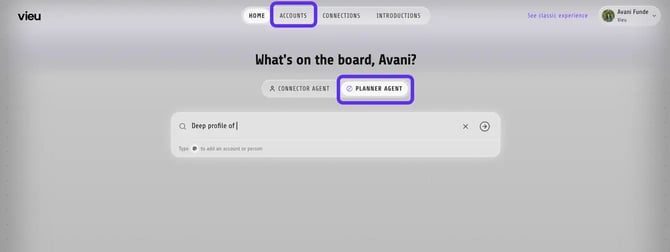
- Planner Agent can open **Accounts Vieu** for you when your query involves researching or prioritizing multiple accounts.
### **2. Understand the Accounts Vieu**
The Accounts page loads your full account list as a table where each row is an account, and each column is a data point about that account.
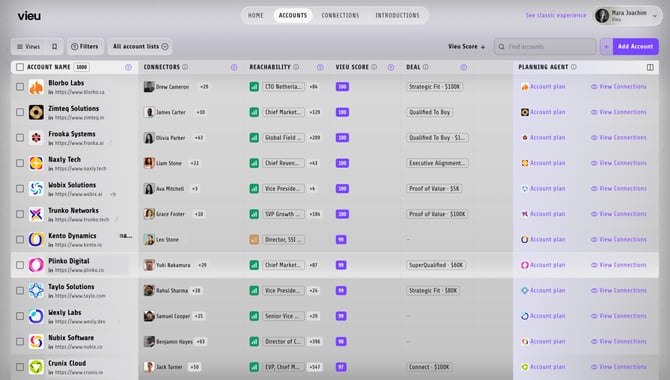
| **Column** | **What it shows** |
| --- | --- |
| **Account Name** | The account or company name. |
| **Reachability** | How easy the account is to reach through your network. |
| **Deal** | Current CRM deal stage and value. |
| **Connectors** | People who can introduce you to the account. |
| **Industry** | The account's industry. |
| **Lists** | Saved lists or cohorts the account belongs to. |
| **Track Introductions** | Introductions currently in progress. |
| **Feed** | Recent company signals like executive changes and news. |
| **Stakeholders** | Stakeholders identified for the account. |
| **Vieu Score** | Overall account priority based on Vieu signals. |
### 3. Add accounts to your list
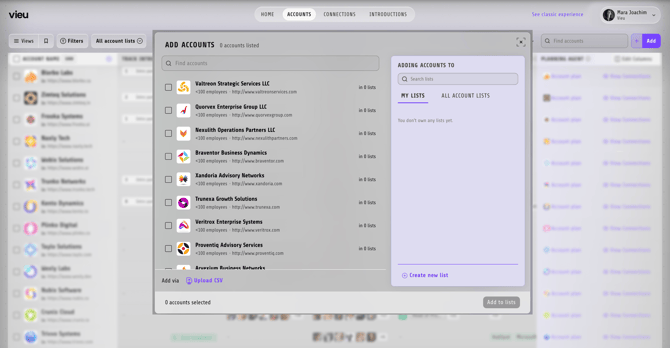
Click **Add** in the top-right corner to open the Add Accounts panel.
From here you can:
- Search for a specific account by name using **Find accounts**
- Select one or more accounts using the checkboxes
- Add them directly to **My Lists** (or browse **All Account Lists** to add to a shared list), or click **Create new list** to start a new one
- Use **Upload CSV** at the bottom if you're adding accounts in bulk from an external source
### **4. Customize your view**
Every team works differently, so you can customize which columns appear in the Accounts table.
Showing only the information that's relevant to your workflow helps you review accounts faster and focus on the signals that matter most.
To customize your view:
1. Click the **Edit Columns** icon in the top-right corner of the Accounts table.
2. Select the columns you want to display.
3. Hide any columns you don't need.
Your customized view makes it easier to prioritize accounts without unnecessary information.
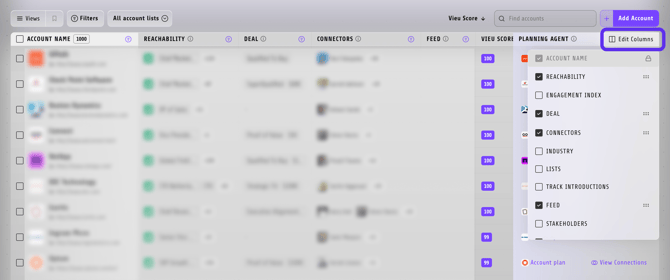
This lets you compare multiple accounts at a glance instead of opening each account individually.
### **Take Action: Open an Account Plan or View Connections**
At the end of every account row, you'll find two quick actions.
##### 1. Account Plan
- Click **Account Plan** to open (or generate) the Account Plan for that account.
- **Use this when you want to** understand the account in depth, identify stakeholders and opportunities, prepare for meetings, or build your account strategy.
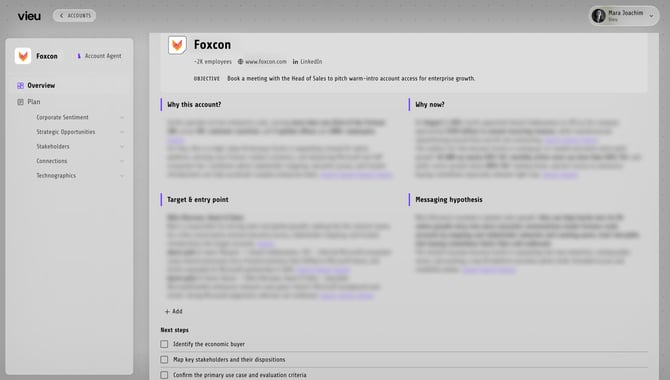
All users can access the Account Plan interface. Each workspace includes a limited number of Account Plans by default. If you can't generate additional plans, contact your Customer Success Manager to enable the module.
##### 2. View Connections
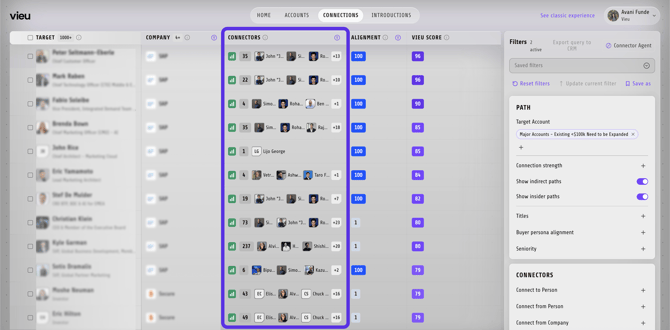
- Click **View Connections** to open the **Connections** page for that account.
- **Use this when you want to** find the strongest warm introduction paths, review relationship context, and start an introduction workflow.
**Need help?**
If you run into issues during setup or want help with field mapping, reach out to us at **[valet@vieu.com.](mailto:valet@vieu.com)**
- [Getting started](https://help.vieu.com/getting-started?hsLang=en)
- [Integrations](https://help.vieu.com/integrations?hsLang=en#main-content)
- [MCP Integration (AI Assistants)](https://help.vieu.com/integrations?hsLang=en#mcp-integration-ai-assistants)
- [CRM Integrations](https://help.vieu.com/integrations?hsLang=en#crm-integrations)
- [Chrome Extension](https://help.vieu.com/integrations?hsLang=en#chrome-extension)
- [Email & Calendar](https://help.vieu.com/integrations?hsLang=en#email-calendar)
- [Vieu Agent for Slack](https://help.vieu.com/integrations?hsLang=en#vieu-agent-for-slack)
- [Finding Connections & Intros](https://help.vieu.com/finding-connections-intros?hsLang=en)
- [Requesting & Tracking Introductions](https://help.vieu.com/requesting-tracking-introductions?hsLang=en)
- [Account Planning and People Outreach](https://help.vieu.com/account-planning-and-people-outreach?hsLang=en)
- [Support](https://help.vieu.com/support?hsLang=en)
[](https://help.vieu.com/?hsLang=en)
Copyright © 2026, Vieu