---
title: How to Put Your Account Plan to Work
description: Learn the four actions to take every time you open an Account Plan i.e. reviewing priority opportunities, finding the right stakeholder and introduction path, personalizing outreach, and using technographic signals to plan targeted campaigns.
---
[Skip to content](https://help.vieu.com/how-to-put-your-account-plan-to-work#main-content)

Open main navigation
Close main navigation
- Contact us
Contact us
How can we help you?
- There are no suggestions because the search field is empty.
1. [Vieu Knowledge Base](https://help.vieu.com/?hsLang=en)
2. [Account Planning and People Outreach](https://help.vieu.com/account-planning-and-people-outreach?hsLang=en)
# How to Put Your Account Plan to Work
Once your Account Plan is built, use it to identify opportunities, engage the right stakeholders, and move your account forward. Follow these steps every time you open a plan.
Get there
1. From **Home**, click [**Accounts**](https://www.vieu.com/accounts) in the top navigation.
2. Find the account you want to work on using your saved view or the search bar.
3. Click **Account Plan** next to the account. The plan opens on the **Overview** page.
4. From the left sidebar, click **Plan** to open the full Account Plan workspace.
Please note: All users can access the Account Plan interface. Each workspace includes a limited number of Account Plans by default. If you can't generate additional plans, contact your Customer Success Manager to enable the module. also give me a meta decription for the acrtile
From here, work through the following steps.
### **Step 1: Act on the opportunities identified for you**
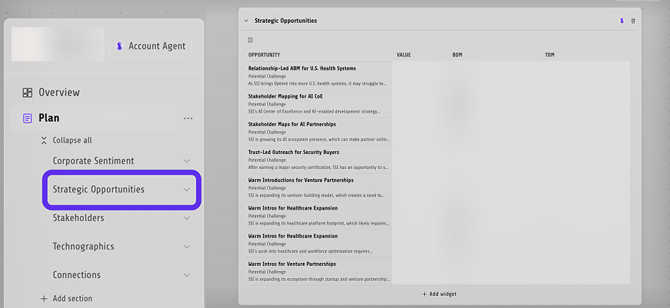
1. From the **Plan** sidebar, click **Strategic Opportunities**.
2. Review each opportunity, including the challenge, supporting evidence, and the business and technical decision-makers involved.
3. Use these insights to prepare your outreach and engage the recommended decision-maker.
4. If no opportunities are available, click **Account Agent** at the top of the sidebar and ask it to research the account and generate new opportunities.
### Step 2: Find the right stakeholder and warm introduction path
1. From the **Plan** sidebar, click **Stakeholders**.
2. Use the department, status, or location filters to find the stakeholder you want to engage.
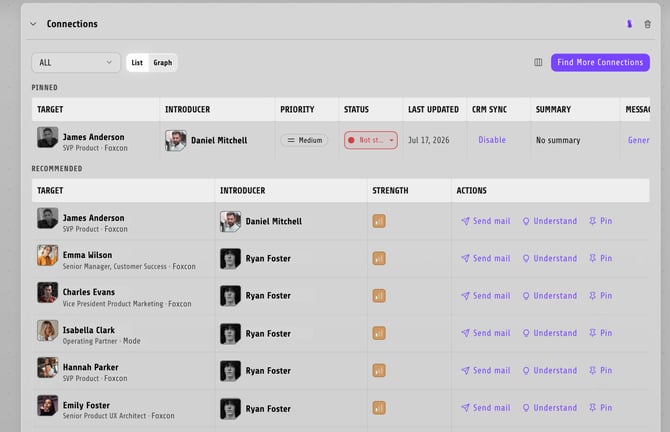
3. From the **Plan** sidebar, click **Connections**.
4. Review the **Recommended** connections for that stakeholder.
5. Click **Understand** to review the relationship before requesting an introduction.
6. Click **Pin** to save the introduction for later, or **Send Mail** to start the introduction process immediately.
### Step 3: Generate personalized outreach
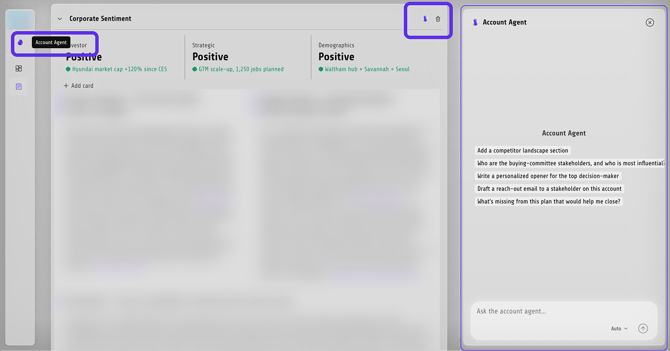
1. Click **Account Agent** at the top of the sidebar.
2. Ask the Account Agent to draft a message for your chosen stakeholder.
3. Review the generated message and make any edits you need.
4. Send the message directly or use it as part of your warm introduction.
### Step 4: Complete the recommended next steps
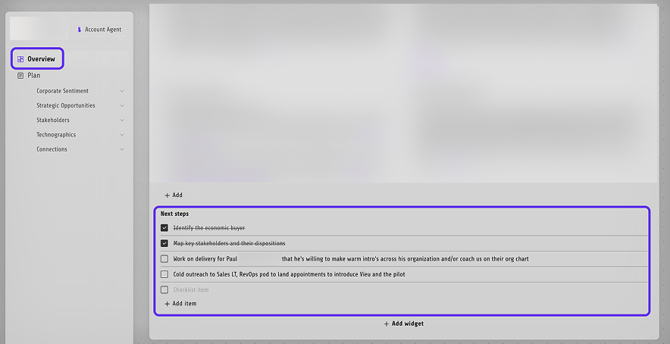
1. From the left sidebar, click **Overview**.
2. Scroll to the **Next Steps** checklist.
3. Review the recommended actions for the account.
4. Complete each action as you work the opportunity and mark it complete when finished.
### Step 5: Build a campaign from technographic signals
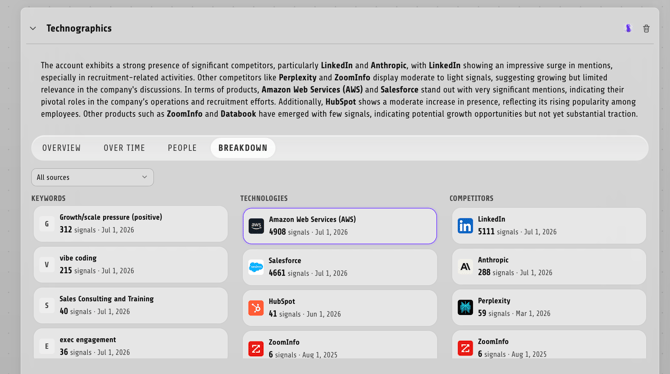
1. From the **Plan** sidebar, click **Technographics**.
2. Review the technologies and buying signals relevant to your solution.
3. Click **Download** to export the contact intelligence for the stakeholders you've identified.
4. Click **Account Agent** and ask it to generate messaging based on the technology or buying signal.
5. Use the exported insights and messaging to launch your outreach or marketing campaign.
### Need Help?
If you need help identifying the best introduction paths or managing introductions across your accounts, contact: **valet@vieu.com**
- [Getting started](https://help.vieu.com/getting-started?hsLang=en)
- [Integrations](https://help.vieu.com/integrations?hsLang=en#main-content)
- [MCP Integration (AI Assistants)](https://help.vieu.com/integrations?hsLang=en#mcp-integration-ai-assistants)
- [CRM Integrations](https://help.vieu.com/integrations?hsLang=en#crm-integrations)
- [Chrome Extension](https://help.vieu.com/integrations?hsLang=en#chrome-extension)
- [Email & Calendar](https://help.vieu.com/integrations?hsLang=en#email-calendar)
- [Vieu Agent for Slack](https://help.vieu.com/integrations?hsLang=en#vieu-agent-for-slack)
- [Finding Connections & Intros](https://help.vieu.com/finding-connections-intros?hsLang=en)
- [Requesting & Tracking Introductions](https://help.vieu.com/requesting-tracking-introductions?hsLang=en)
- [Account Planning and People Outreach](https://help.vieu.com/account-planning-and-people-outreach?hsLang=en)
- [Support](https://help.vieu.com/support?hsLang=en)
[](https://help.vieu.com/?hsLang=en)
Copyright © 2026, Vieu