
Uploading your LinkedIn connections is what powers warm introductions inside Vieu.
Before we get into the steps, here’s what happens once you upload.
What Happens After Upload?
Once your CSV is uploaded:
-
Vieu maps your LinkedIn connections to companies
-
It identifies executive touchpoints inside your target accounts
-
It surfaces verified warm paths in Connections Vieu
-
You can start pinning and requesting introductions
Processing may take a few minutes depending on file size.
Step 1: Download Your LinkedIn Connections CSV
This must be done from a desktop browser (not mobile).
1. Go to LinkedIn
2. Click your profile picture (Me)
3. Select Settings & Privacy
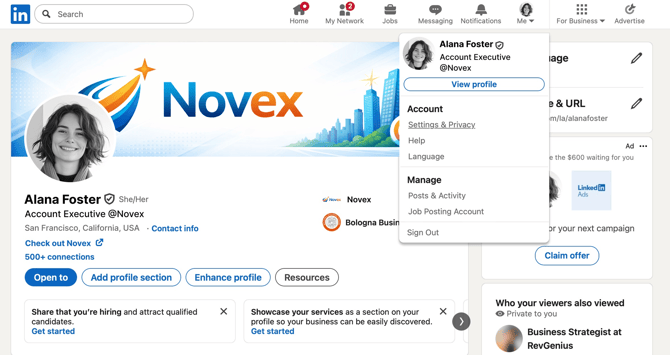
4. Click Data Privacy from the left panel and select Download your Data
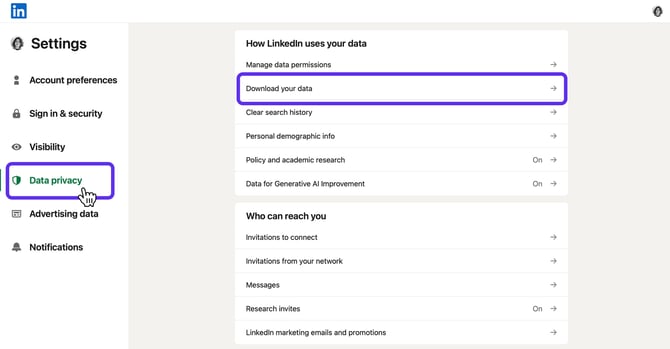
5. Click Request archive and LinkedIn will send you an email with a download link.
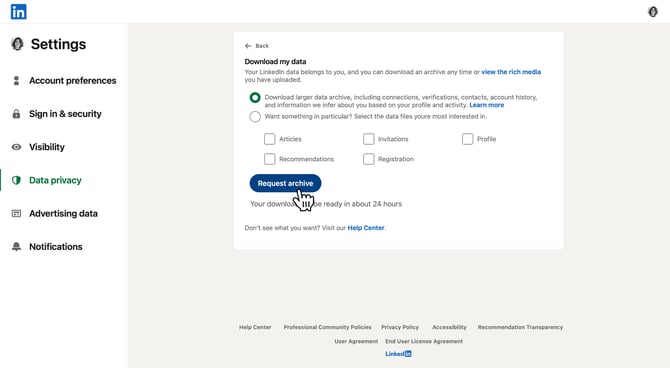
You can also follow LinkedIn’s official guide here.
5. After downloading the ZIP file
6. Extract the files to your computer
7. Locate the file named something like: Connections.csv
Step 2: Send it to Vieu or upload it yourself
Once you've downloaded Connections.csv, you can either:
- Send it to the Vieu team (Recommended) or email it to valet@vieu.com, and we'll take care of the upload for you.
- Upload it yourself by following the steps in Upload Your LinkedIn Connections CSV into Vieu.
If you'd prefer to upload it yourself, follow the steps below
Upload the CSV into Vieu
Once you’ve downloaded the file:
2. Click your account name in the top right corner
3. Under Your Account, select Upload connector CSV
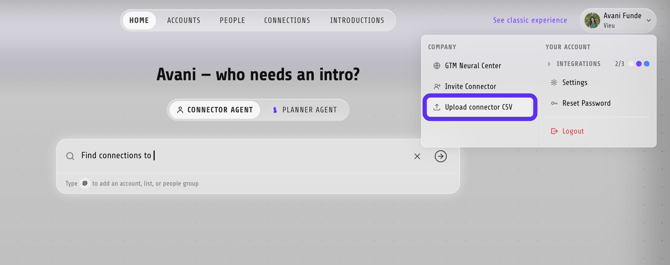
4. In the Upload your LinkedIn Connections window, choose who the upload is for:
- Upload for yourself, or
- Upload for someone else
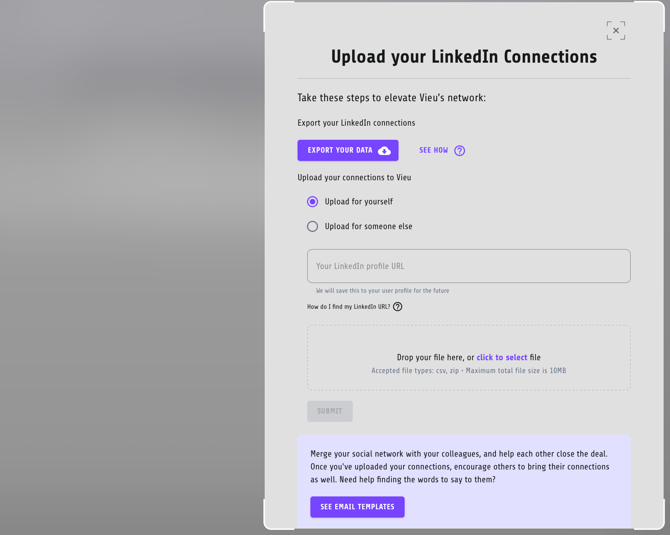
5. Enter the relevant LinkedIn profile URL (this is saved to the profile for future uploads)
6. Drop Connections.csv into the upload area, or click click to select to choose the file from your computer
7. Click Submit
8. Wait for processing to complete
Best Practices:
-
Do not upload the full archive
-
Do not edit the CSV file before uploading
-
Refresh your CSV every 3–6 months if your network grows significantly
Need Help?
Email valet@vieu.com and we’ll help you get fully activated.