
What AEs can do with Vieu + Hubspot
As an AE, you’ll use Vieu and Salesforce together in three main ways:
- Export connections to Hubspot (in bulk or individually)
- Pin and explore connections to understand relationship context in Hubspot
- Request introductions by jumping into Vieu when you’re ready
The sections below walk through each of these actions.
1. Export connections to Hubspot
You can export connections from Vieu into Hubspot so relationship context is visible directly on accounts and contacts.
This helps:
- Relationship context appear in CRM
- Teams understand how connections support pipeline
- You decide what gets written to Hubspot
How to export connections
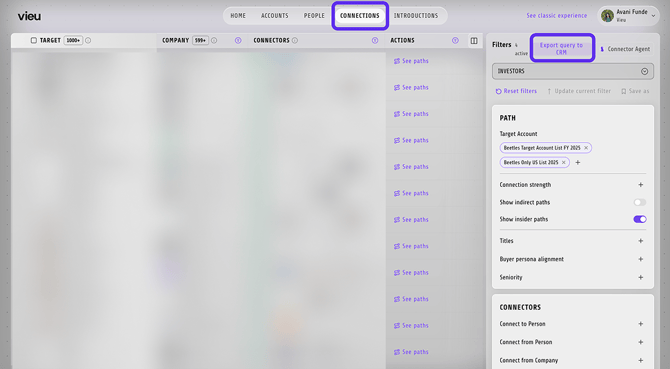
1. Navigate to Connections Vieu in Vieu and apply the filters you need (for example, target account list, connection strength, titles, or seniority).
2. Export all connections in the filtered view Or select specific connections to export
3. Click Export Query to CRM in the top-right corner
4. Use the drop-down menus to choose how many target accounts per company and connections per target you want to export.
5. Click Start export to begin exporting the selected connection paths to your CRM. The export may take several hours to complete.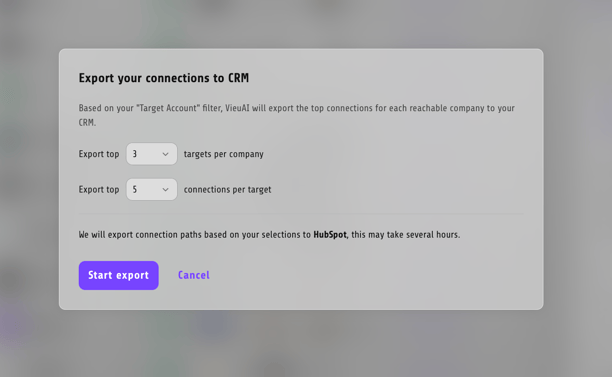
where to find exports in Hubspot
After exporting:
-
Log into HubSpot
-
Navigate to the related Company or Contact
-
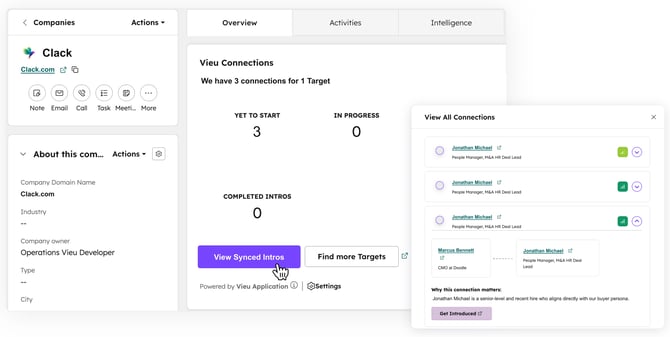
Look for the Vieu App Card on the right-hand panel
-
Inside the App Card, you’ll see:
- Under Overview - Status breakdown (Yet to Start, In Progress, Completed Intros)
- Option to to expand and view all connections to the target using "View Synced Intros"
If you don’t see this section, Hubspot may not be connected yet. Share this with your admin: How to Connect Hubspot to Vieu
2. Expand connections to understand the relationship
Inside HubSpot, Vieu helps you quickly understand how someone is connected before you decide to move forward.How to expand and pin a connection
-
Open the Company or Contact in HubSpot
-
Locate the Vieu App Card (as shown above)
-
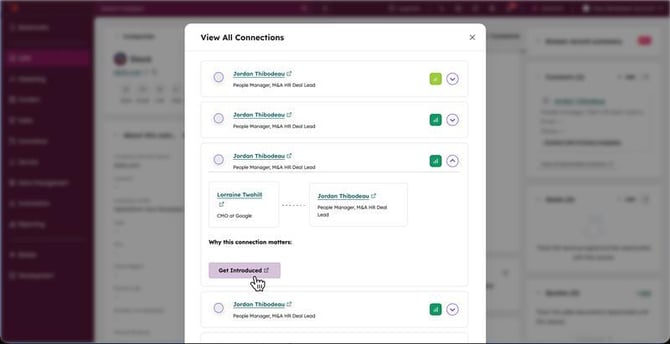
Click View Synced Intros
-
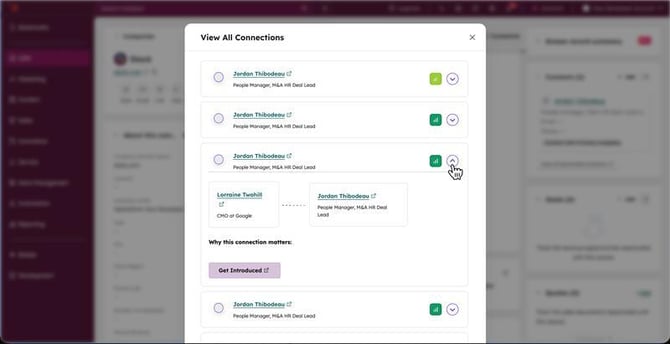
Click the dropdown next to a connection to expand it
When expanded, you can see:
- Who the introducer is
- Who the target is
- How the relationship is structured
- Why this connection matters
This helps you decide whether the connection is strong and relevant enough to act on.
Please note: If the Introduction is pinned or unpinned inside Vieu, the Pin status will reflect in HubSpot.
What is "pinning a connection"?
- Marks it as something you intend to pursue
- Automatically tracks it in Introductions | Vieu
- Makes it easy to come back to later
3. Request the introduction
Once you’ve reviewed the relationship and pinned the connection, you can request the introduction.
How to request the intro
- In the Hubspot App Card, click on Get Introduced
- You’ll be redirected to the Vieu dashboard
- Review the drafted introduction request
- Send the intro when ready
Need help?
If something does not look right in Salesforce or you are unsure how an action syncs, reach out to us at valet@vieu.com and we’ll help you sort it out.