
Introductions Vieu is where every pinned or requested introduction comes together. It gives you a single place to track progress, manage priorities, and move executive introductions forward without losing context.
Once you pin an introduction path or request an intro in Connections Vieu, it automatically appears in Introductions Vieu, ready to be managed.
How to access Introductions Vieu
Step 1 : Log in to Vieu and navigate to Introductions Vieu Or jump directly to it using this link.
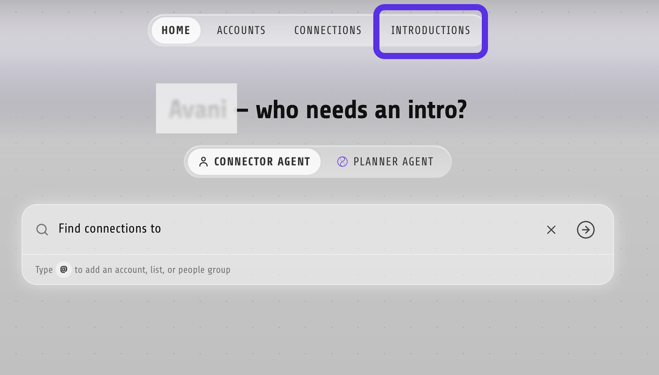
Choose your view: In the upper-left corner of the page, use the view selector to switch between: Table, Pivot, and Dashboard views depending on whether you want to manage individual introductions, analyze trends, or view overall progress.
Prefer a video walkthrough? Here you go!
What you’ll see in introductions Vieu
The Introductions page gives you a centralized view of all your introductions so you can quickly understand what's in progress, what's completed, and what needs attention.
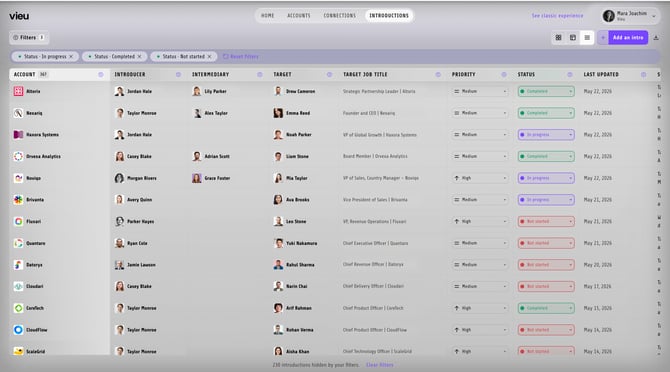
Each row in Introductions represents a potential introduction and includes:
- Account – The company associated with the introduction opportunity.
- Introducer – The person who can directly introduce you to the target.
- Intermediary – An additional connection involved in the introduction path, if applicable.
- Target – The person you want to be introduced to.
- Target Job Title – The target's current role or title.
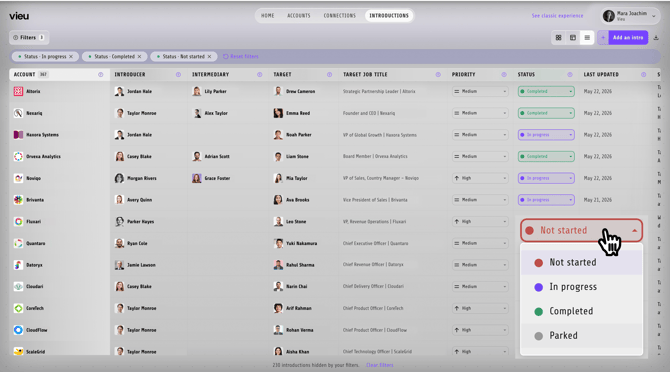
- Priority – The importance of the introduction (High, Medium, or Low).
- Status – The current stage of the introduction (Not Started, In Progress, Completed, or Parked).
- Summary – Context explaining why the target is relevant and why the introduction is valuable.
- Message – The introduction request that can be used when reaching out to the introducer.
- Last Updated – The most recent date and time the introduction was modified.
Customise your Introductions Dashboard
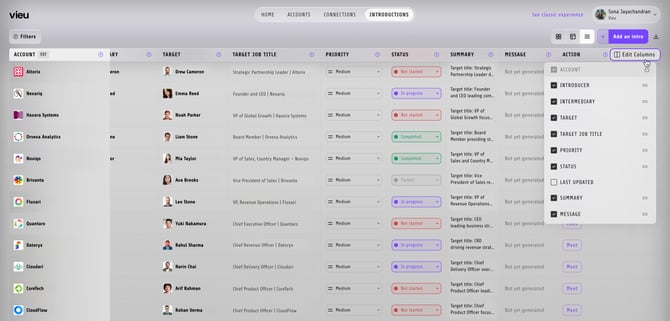
Click Edit Columns in the top-right corner of the table to customize what information is displayed.
You can:
- Show or hide columns.
- Reorder columns.
Your column preferences are saved and only apply to your view.
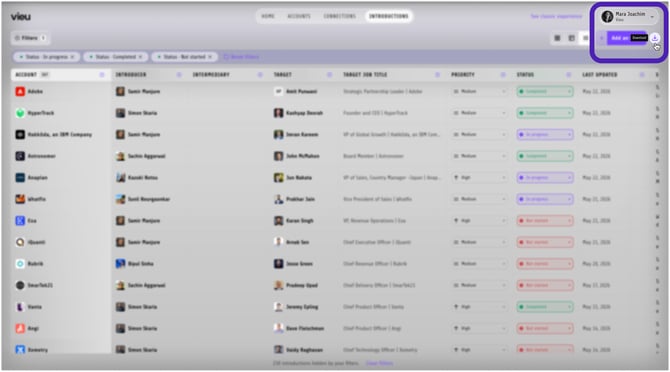
Download Introductions
To export your introduction data, click Download in the top-right corner of the page.
As your introductions list grows, filters help you quickly narrow down what needs attention. Instead of scanning every path, you can zero in on the right introductions based on urgency, progress, or account focus.
Step 2 : Find the Right Introductions Using Filters
To narrow your list, click Filters in the upper-left corner of the page.
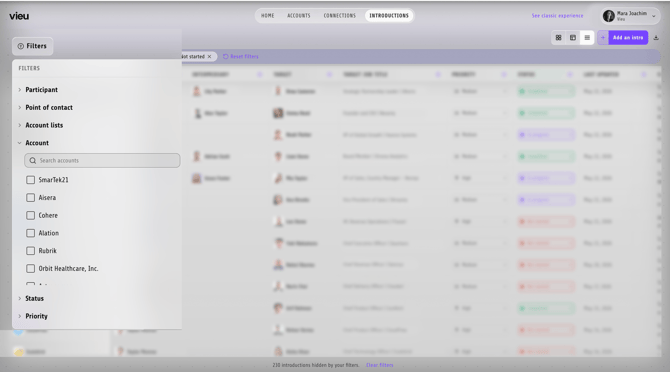
You can filter introductions by:
- Priority to focus on high-impact introductions
- Status to see what’s not started, in progress, completed, or parked
- Account when working on a specific company
- Cohorts if you’re managing introductions across a predefined list
- Point of contact or target to track specific people
Use these filters to quickly surface introductions that need action right now.
Step 3: Manage Introduction Status and Priority
Introductions Vieu lets you track progress and urgency directly from the introductions list, so nothing gets lost as conversations move forward.
Each introduction has a status that reflects where it stands and a priority that signals how important it is. You can update both inline, without leaving the page, as situations change.
If your CRM is connected, introduction status in Vieu syncs bi-directionally with your CRM.
This means:
• Updating the status in Vieu reflects in your CRM
• Status changes made in your CRM automatically update in Vieu
This keeps Sales, RevOps, and GTM teams aligned without manual updates or duplicate tracking.
Learn more about CRM data, workflows, and use cases here.
Send Introduction Request Emails
To take Action on an Introduction, go to the Action column and click on Meet.
This opens the introduction details page, where you can:
- Review additional context about the opportunity.
- See the recommended introduction path.
- Review or edit the introduction request of needed and send.
This makes it easy to move introductions forward while keeping the message clear, relevant, and easy to forward.
Introductions Vieu turns warm introductions into a system. Instead of relying on memory, inbox searches, or spreadsheets, you get a structured way to manage executive access across your pipeline. From first pin to completed intro, everything stays visible, prioritized, and easy to act on.
Need help?
For help creating account lists, improving searches, or setting up workflows, reach out to your CSM or contact Vieu Valet at valet@vieu.com.